> ## Documentation Index
> Fetch the complete documentation index at: https://cantonfoundation-integrate-ext-signing-overview.mintlify.site/llms.txt
> Use this file to discover all available pages before exploring further.
# Switch Parties
> Change the primary party used to conduct transactions in Splice Portfolio.
Switching parties means changing the party used to conduct transactions.
These steps apply only if you are using the [Wallet Gateway](/integrations/wallet-gateway/overview) as your signing provider. Other CIP-103 wallets manage the primary party in their own interface.
## Switch Your Primary Party
1. Navigate to the bottom of the side navigation and click the **Wallet Gateway** button.
.png?fit=max&auto=format&n=v70I0EBpiud9QyMP&q=85&s=50a4fc29ac4e06f2f14f449a69694d2f) 2. A pop-up window appears where you can review existing parties in the **Parties** tab. The selected party has a **Primary** tag to indicate which party you are currently operating from.
2. A pop-up window appears where you can review existing parties in the **Parties** tab. The selected party has a **Primary** tag to indicate which party you are currently operating from.
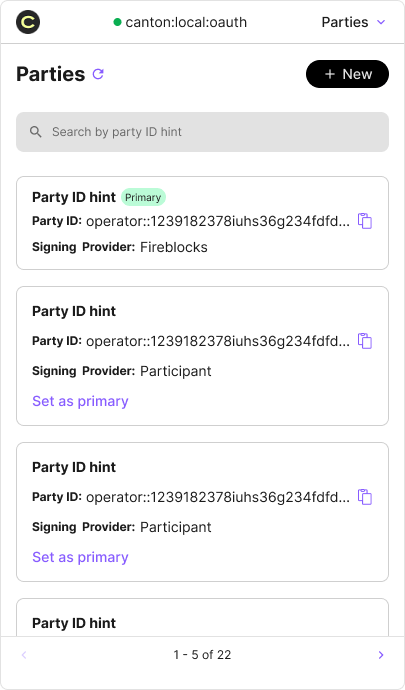 3. Click **Set as primary** on another party to change it.
You can also create a new party using the **+ New** button at the top. Check **Set as the primary party** if you want to use it right after creating it.
4. Go back to Splice Portfolio to continue conducting transactions with the new party.
## Related
* [Party Management](/integrations/wallet-gateway/use/party-management) -- Create, organize, and remove parties in the Wallet Gateway
3. Click **Set as primary** on another party to change it.
You can also create a new party using the **+ New** button at the top. Check **Set as the primary party** if you want to use it right after creating it.
4. Go back to Splice Portfolio to continue conducting transactions with the new party.
## Related
* [Party Management](/integrations/wallet-gateway/use/party-management) -- Create, organize, and remove parties in the Wallet Gateway